Computer Storage

Signed-In Members Don't See This Ad

jttheclockman

Member
Joined
Feb 22, 2005
Messages
20,343
Location
NJ, USA.
I believe I have asked this question before but thought I would throw it out again because I feel a real need to do something now that Windows 10 is on the way out. I thought I would ask the better minds here because I have always been lead straight here and trust the computer genius here. I would like to basically protect all my computer files and photos and anything else that I have on this computer. because when I switch to Windows11 I do not want any OOPSes. I do not want to use the Cloud. Have no idea how to anyway. I do not have the old style spinning hard drive in this computer. Lack of not knowing things I do not know if this means anything. Computer is about 5 years old and runs great. fast as I need it to be. Many many years ago I bought a device from QVC called Cick-It which I am guessing was a hard drive that you used to download your computer to and it saves files and all that. Basically plug in and it does all the work and you do this from time to time and it will find any new files over that period of time and add it to the this device. Have to say that worked very well because it was shortly after that my computer died and I had to get another one and thought I was lost because the hard drive in the old computer was shot from what I was told. But I had that backup system and was able to save mostly my photos and important favorite files. It did its thing. Well that device does not work with the newer computers.

So I am looking for either another device like that that is simple to use or a method to clone the files and important stuff. My computer skills are very limited at best. I bet if someone who knew computer were to look at my files they would laugh because they are all over he place and probably take up too much data space. i did get the 1 year extension to keep Windows 10 so hopefully I have time to work something out before I make the switch. I heard it is easy but as they say, best to be safe than sorry. if I lose this computer I do not know what I will do. i think it is wise to look into this now. So looking for all advise. I will answer any questions I can if need be. Thanks in advance.
 
Signed-In Members Don't See This Ad
I have a large thumb drive that I just drag and drop all my files I want to save to it. If I add more important files down the road that I don't want to lose, I format the thumb drive and drag and drop again.
 
My W10 laptop died and I got a Lenovo with W11. As for Cloud, Pilot, etc., there are a bunch of things on my laptop that I didn't ask for or don't care for. Changed a lot, too. Example: to download photos from phone or camera now takes several steps instead of two under W10. Saw where W10 isn't supported anymore.
 
I upgraded an older HP desktop from win 10 to 11 early 2025. I am somewhat computer savvy, but not an expert. Before you start, check that your computer is compatible with Win 11.
I went to Bestbuy and bought a new 500 GB SSD and a little package that contains the Win 11 license so you can download it. It was about $100 for Win 11 and about $100 for the SSD. It took me a 2 or 3 days to get everything done. Mostly because I was trying to install Win 11 as a "clean install" on the new SSD.
I did finally get it done but it was a frustrating couple of days. There are instructions on the web, I googled it and ended up using info from MS and HP and other places to finally get it done. You can elect not to put anything on the cloud during setup/configuration. If I am remembering correctly, it would have been easier if I didn't install as a clean install and keep the old hard drive as a backup drive. I didn't lose any data and the SSD is far faster than the old hard drive. Powerup is at least twice as fast.

Mike
 
I upgraded an older HP desktop from win 10 to 11 early 2025. I am somewhat computer savvy, but not an expert. Before you start, check that your computer is compatible with Win 11.
I went to Bestbuy and bought a new 500 GB SSD and a little package that contains the Win 11 license so you can download it. It was about $100 for Win 11 and about $100 for the SSD. It took me a 2 or 3 days to get everything done. Mostly because I was trying to install Win 11 as a "clean install" on the new SSD.
I did finally get it done but it was a frustrating couple of days. There are instructions on the web, I googled it and ended up using info from MS and HP and other places to finally get it done. You can elect not to put anything on the cloud during setup/configuration. If I am remembering correctly, it would have been easier if I didn't install as a clean install and keep the old hard drive as a backup drive. I didn't lose any data and the SSD is far faster than the old hard drive. Powerup is at least twice as fast.

Mike
This computer is an all in one and has windows 11 on it but I never downloaded it. I have been working off Windows 10 since I got it and find it works well. I never did sign on to the cloud thing. I love this computer. I would get another if it ever broke beyond fixing. just want to save stuff.
 
You can get huge thumb drives these days. That is what I use for backup.
Will they be able to just keep adding anything that is new if I insert again? If so do you have a brand you recommend. I trust your knowledge. You helped me many times here. Thanks.
 
John

I'm paranoid about this issue. There are a number of options to choose from:
  • An external hard drive sold as a backup device, and that comes with backup software.
  • A software application that you install and run and that manages the backup operations for you, addressing one of several possible storage options.
  • A cloud backup option such as the OneDrive feature in Windows 11.
  • A manual system in which you periodically (when you remember) copy critical files to some backup device or medium.
Any of these will work, but each has limitations. I use a combination of all of them.

The standalone backup device is a very simple solution - its accompanying software creates an image of your hard drive, and then either updates that image on a scheduled basis, or does a file-by-file update as you create and save new content. Its probably the simplest approach, and it works very well. One major problem that it is finite in capacity, and its wise to periodically clean out duplicate files before you reach the limit of its capacity. I have a tickler on my calendar to do that once a month. The other problem is that it is a physical drive, and it too can fail. And it can fail without letting you know - which means that you may not know that it has failed until you need to use it to recover something. Ouch (DAMHIKT) Most every computer supply store offers a selection fo choose from. Mine is a conventional rotating hard drive, but when the time comes to replace it, I'm going to get a solid state drive. Either can fail - but a rotating disk presents a very specific mechanical failure mechanism. By the way, if you choose this approach, make sure that the backup drive has more capacity than the hard drive on your computer.

The backup software approach does essentially the same thing as a standalone backup drive - you just have to provide the backup drive. You could direct the backup to a partition on your computer's main drive, but a separate device is more secure. I use a program called 'Perfect Backup' to periodically copy my financial records to a high-capacity thumb drive plugged into my computer. Note that this is in addition to backing up those files on my backup hard drive.

Incidentally, if you have a router to create a home WiFi network, it may have a USB port and be able to support a "NAS" drive - this is a device that plugs into that USB port and can be accessed from any device on your WiFi network. I say 'may' - while this is supposed to be possible, I had difficulties doing it from my Windows 11 computer. Unfortunately, attempting to resolve the matter triggered a major computer problem, and I gave up rather than pursuing it further.

In most options, the backup drive is close to your computer which means that a major catastrophe (fire, flood, etc) could wipe out everything. This is main advantage of cloud storage - it's offside so barring some global catastrophe, it should survive. Windows 11 includes an app called OneDrive that does this automatically - but you have to be very careful using it. One of the people I track is Leo Notenboom - a former Microsoft engineer who publishes information on computer usage through his 'Ask Leo' YouTube series. Leo did a series of YouTube videos on OneDrive a while back in when he discussed a very serious problem with OneDrive - because it is an integral part of Windows, if you allow it to function as an automatic backup, any file or other document you create will be saved to OneDrive (the cloud) and won't exist on your computer, and when you save revisions, it automatically overwrites the version in the cloud. But what that means is that a hiccup along the way can cause it to lose content. That happened to me last year. I still use OneDrive, but I have turned off the automatic backup function (and I always refuse to turn it on when Windows does its 'every Tuesday' update). Instead, I use it mainly as cloud drive for transferring content from my computer to my Fire Tablet or my iPhone, but I also use it to keep copies of critical financial files.. What that means is that my computer always saves content to its built-in SSD drive, and if I want it to also be saved to OneDrive, I have to do a separate 'save as' operation.

Let me be clear - there is nothing inherently wrong with cloud storage (OneDrive, DropBox, etc) and I have no concerns about storing content in the cloud. In fact, using a standalone backup application to write backup copies of critical files to OneDrive might be a very good solution. The problem with the integration between OneDrive and Windows 11 is that OneDrive displaces storage in the local computer and becomes the sole archive - which means that there is no effective backup.

And finally, there is the purely manual approach of periodically copying critical content to a flash drive or DVD that gets stored separate from the computer. I do this for my pictures. My computer has a DVD drive, and I have a separate USB-connected DVD drive that I could use with my wife's laptop that doesn't accept DVDs.

I've had the hard drive in my computer fail, and I've also had failures of both my backup hard drive and the OneDrive cloud system. So I've learned the hard way that its just prudent to have multiple backups of critical contant. Burned once, twice cautious.
 
Last edited:
Here is a very different idea. We have fast 1,000 mbps internet from Race. I like to know my data is protected LOCALLY not in the cloud.

I moved all of my data to this NAS drive with RAID. My four computers all find the data in one place and save all data to the NAS. My shop is more than 100 feet away yet loads my 3D file or laser file loads very quickly using WiFi. My wife and I have had to work quite a bit before the NAS to not edit files in separate pcs and get them out of synch. No more

The RAID means basically that every file is on two drives within the NAS. We alter one drive's file and that change is automatically mirrored to the other drive. In case of a crash the remaining drive is functional and the defective drive can be installed and the NAS will re-establish two working copies. It is hot swap able.

I worked to keep a research lab with 50 people using pcs and Macs running. Flash drives died all the time. We came up with a yearly exchange of old to new flash drives after transferring the data just in case. Be careful with flash drives especially off brand ones.

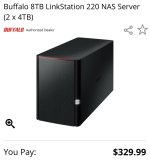
I have this 8 TB NAS. It is perfect. We have 1-2 TB of data.

Plan B
We have also used a free program called Karen's Replicator for many years. It can be programmed to run a backup to an external USB or internal drive. We have it set to backup data, photos, music, downloads and desktop every Sunday morning. The first time it copies everything and that takes time. The second and later times it only copies the files that have been changed and it is lightning fast. Unlike most backup programs: it works, costs nothing and saves files exactly like you made. They can be accessed instantly. If your pc's HD fails, plug the backup drive into another pc and everything saved is there not in some odd file format that has to be restored.
 

Attachments

  • IMG_6717.jpeg
    IMG_6717.jpeg
    157.5 KB · Views: 9
Last edited:
Back
Top Bottom